Windows software — published by COM’BOX

Find your Windows apps — and MUCH MORE — in seconds.

Launch apps, files, folders, links, shortcuts and Workspaces from one clear panel.
WindowsMultilingual7-day full trialV1 license from €14.90

Find your Windows apps — and MUCH MORE — in seconds.

Ctrl Deck by COM’BOX

Available now on Microsoft Store

Ctrl Deck

Get it from Microsoft Store
Get it on Microsoft Store

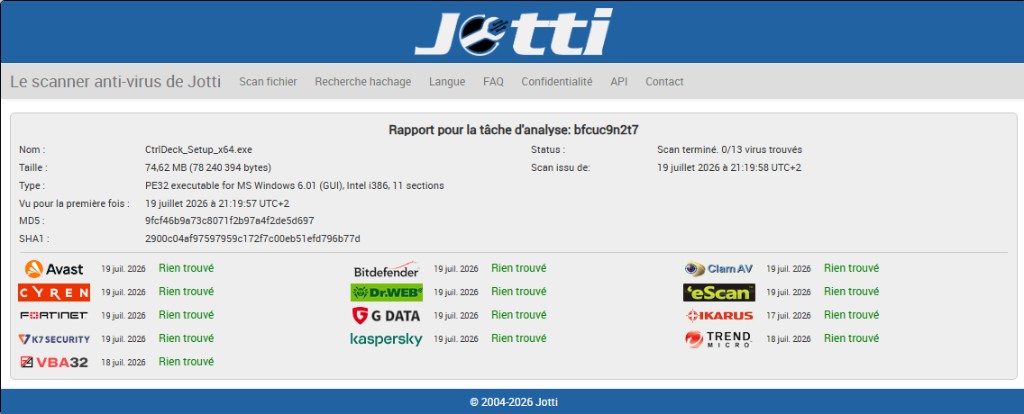
Secure installation from the official Microsoft Store listing.

The next evolution is in preparation

Ctrl Deck V1.7

Ctrl Deck is preparing a redesign and new features designed to make it easier to organise your tools, whether you are a professional or a beginner.

Ctrl Deck V1.7 is not just a collection of new features: the way you find, organize and use your tools has been redesigned from end to end.

The goal remains simple: move quickly between applications, folders, files, URLs and shortcuts without wasting time searching through a crowded taskbar, the Start menu or a long list of open windows.

From the first launch, Ctrl Deck can suggest applications already available on your desktop or taskbar. You choose what to keep, what to ignore, and the suggested groups remain editable to match the way you work.

The new Application Library brings together compatible applications detected on your computer. You can then place them where they are actually useful: as an individual shortcut, inside a group or in a Workspace.

Groups help you structure your environment: Design, Productivity, AI & Development, Communication, business tools, projects or personal routines. Keyboard shortcuts remain completely optional and can be assigned to a specific item or an entire group.

Workspaces are evolving to help you prepare and return to the work environments that matter most: your usual workday, a project, a client, a campaign, a business task or a specific routine. Gather the resources you need and find them more easily when you return to work.

Finally, Live Spaces add an extra layer of continuity: before an interruption, save your work context and let Ctrl Deck help reopen compatible items when you come back.

Ctrl Deck V1.7: more than an app launcher, a visual workspace designed for professionals who work with many tools.

Software platforms

Ctrl Deck referenced on several software platforms

Softpedia and Sooftware have published a review of Ctrl Deck. Other software platforms have also referenced the app.

Use Ctrl Deck in your language

Ctrl Deck is available in several languages for your working environment. The international page is in English by default, but you can switch language at any time.

Interface available in several languages. Priority support in French and English.

From cluttered workflows to full control

Ctrl Deck turns repeated actions, commands and app shortcuts into one clean visual panel.
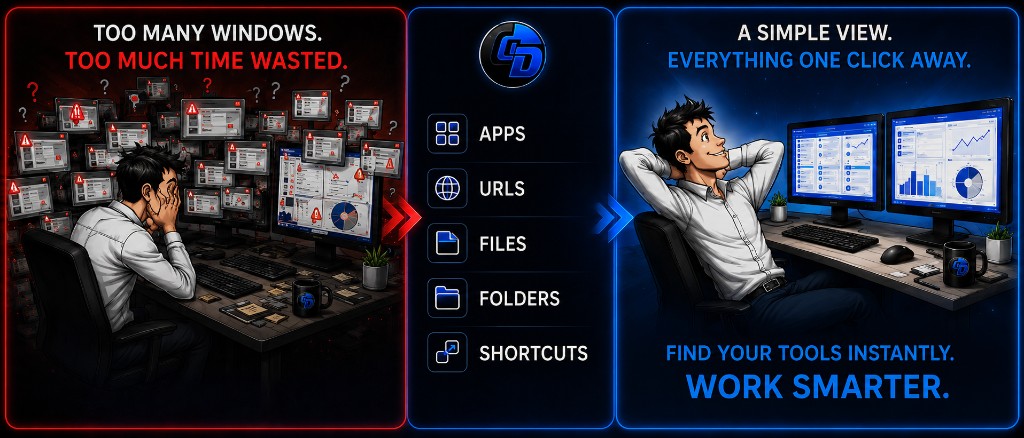
Ctrl Deck illustration — from cluttered workflows to a clean visual panel

If your workspace looks like this…

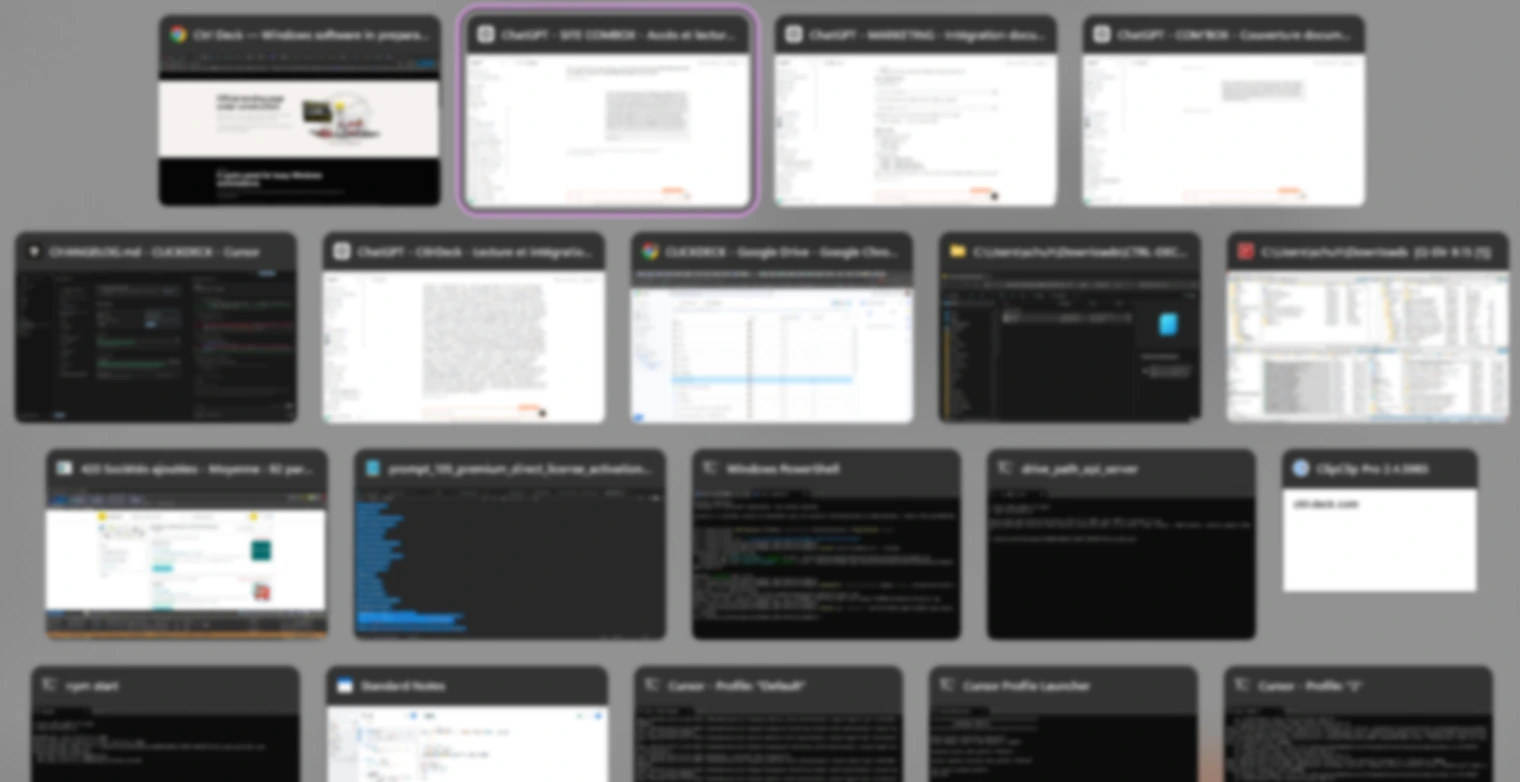
Too many open apps, windows everywhere, an overflowing taskbar, Alt+Tab on repeat. It is not a major problem once. It is permanent friction when it happens all day.

Overloaded Alt-Tab

Overloaded Alt-Tab

When every window switch becomes a search through a wall of screens.

Extended taskbar

Extended taskbar

Image intentionally split over two lines. How do you instantly find the precise application tab you need, even under pressure?
Multi-window work

Multi-window work

Whether you use multiple screens or not, one application can generate several windows, and finding the right one can break your working rhythm.

CTRL DECK V1.6 — QUICK START

The Quick Start videos below visually explain the main Ctrl Deck V1.6 features.

Discover the panel, shortcuts, Workspaces, Live Spaces, and the useful features you need to know to get started.

Drag and drop

Ctrl Deck V1.6 makes shortcut creation faster and more visual with drag and drop.

In this video, you will see how to add different types of resources directly to Ctrl Deck by dragging them from Windows File Explorer.

Depending on what you need, you can quickly add:

  • URLs
  • folders
  • documents
  • PDF files
  • Word and Excel files
  • images and other local files
  • Windows shortcuts
  • applications and executable files

Instead of searching through folders or manually entering paths, simply drag the resource you use and drop it into Ctrl Deck to create a shortcut.

This is one of the key improvements in Ctrl Deck V1.6: making the app easier to use for everyday Windows users while keeping it efficient for professionals and advanced users.

Ctrl Deck helps you centralize the resources you use most often in one visual panel, so you can access them faster whenever you need them.

Video summary

Drag files, folders, URLs and applications from Windows File Explorer into Ctrl Deck to create a shortcut without typing paths. This quick method suits everyday use and professional workflows alike.

Detect applications

Adding an application shortcut should not require digging through Windows folders, searching for shortcuts, or trying to locate an `.exe` file manually.

Ctrl Deck V1.6 makes this process easier.

With the yellow Detect application button, start the detection process, open the application you want to add, and let Ctrl Deck identify it automatically.

Ctrl Deck then fills in the application shortcut field, so you can save it directly to your panel.

This makes it faster to add everyday applications such as browsers, office software, creative tools, and business applications you use regularly.

You can also add applications through other simple methods, including drag and drop from Windows File Explorer when supported.

The goal is simple: spend less time searching through Windows folders, and more time using the applications you actually need.

With Ctrl Deck, creating an application shortcut becomes a quick, guided action — even when you do not know where the application is installed.

Video summary

The Detect application button identifies the open app and fills in the shortcut field automatically. No more hunting for an .exe file in Windows folders.

Launch Resources Without Opening the Panel

Ctrl Deck V1.6 gives you two ways to use your shortcuts.

You can open the visual panel and launch your resources with a single click. Or, for a faster workflow, you can assign optional global keyboard shortcuts to the items you use most often.

Once a keyboard shortcut has been configured, Ctrl Deck does not need to display the panel.

As long as Ctrl Deck is running in the background, your key combination can launch the action directly.

This can include:

  • applications
  • folders
  • files
  • documents
  • websites and URLs
  • Windows shortcuts
  • Workspaces
  • other configured resources

This is useful for people who already know the resources they use every day and want to open them instantly without interrupting their workflow.

Keyboard shortcuts are completely optional. You are never required to assign one to a shortcut.

Users who prefer a visual experience can simply use the panel. Users who want maximum speed can use keyboard shortcuts in the background.

To reduce conflicts with Windows and other applications, Ctrl Deck uses keyboard combinations with at least three keys.

Video summary

Assign optional keyboard shortcuts to launch resources without opening the panel. Ctrl Deck can run in the background using combinations of at least three keys.

Workspaces

Workspaces: Reopen Your Working Environment Faster

A Workspace helps you organize the resources you regularly use for a project, a client, a routine or a specific type of work.

Instead of reopening the same applications, folders, documents and websites one by one, you can prepare a Workspace once and keep everything grouped in one place.

A Workspace can include:

  • applications
  • folders
  • project folders
  • client folders
  • files and documents
  • PDF files
  • Word and Excel files
  • websites and URLs
  • Windows shortcuts
  • other useful local resources

For example, you can create one Workspace for a client, one for a project, one for your accounting tasks, one for content creation or one for your daily office setup.

Once your Workspace is configured, you can open it directly from Ctrl Deck whenever you need it.

Workspaces are designed for recurring work environments. They help reduce repetitive actions and make it easier to return to the tools and resources you use most often.

The idea is simple:

Configure your work environment once, then find it again quickly when you need it.

A Workspace is not just a group of shortcuts. It is a reusable working context built around the way you actually work.

Video summary

A Workspace groups resources for a project or recurring routine. Set it up once, then reopen your work environment in one click.

Live Spaces

Live Spaces: Save Your Current Work Context for Later

Live Spaces are designed for moments when you need to stop working quickly but do not want to lose track of everything you currently have open.

You may be working with several applications, folders, files, browser pages and URLs at the same time. Then an interruption happens: a meeting, an urgent task, a shutdown, a break, or simply the need to leave your desk.

Instead of trying to remember every resource later, you can create a Live Space.

Give it a name, save the current context, and reopen it when you are ready to continue.

A Live Space helps you recover the working environment you had at that moment, including the resources that were part of your active session.

This is different from a Workspace.

A Workspace is prepared in advance for a recurring project, client, or routine.

A Live Space is created in the moment, when you want to preserve the context of what you are currently doing.

The idea is simple:

Save your current work context now. Return to it later without rebuilding everything manually.

Important: Live Spaces do not save unsaved documents for you and do not close applications on your behalf. You remain responsible for saving your work in Word, Excel, Photoshop, or any other application.

Ctrl Deck helps you recover your working environment. It does not replace the save function of your software.

Video summary

A Live Space saves your current work context to resume later. Unlike a planned Workspace, it captures what you are using right now.

Import, export, updates and multi-column layout

Export or import your Ctrl Deck configuration when you need to move or restore your setup.

Check your version and available updates directly from Ctrl Deck.

As you add shortcuts, Ctrl Deck can organize them across multiple columns. Your panel is not limited to a single column constrained by screen height: it can expand horizontally to keep your shortcuts visible and accessible.

Video summary

Export or import your configuration to move or restore Ctrl Deck. You can also check your version and arrange shortcuts across multiple columns.

Developer actions: visible, deliberate, controlled

By default, Ctrl Deck stays focused on simple shortcuts: apps, files, folders, URLs and Windows shortcuts. Developer actions are intended for advanced users: they require an explicit choice, a warning, and a confirmation before any manual execution.

Learn more about Developer actions

Step-by-step explanation of Developer actions access in Ctrl Deck

Why use Ctrl Deck?

Ctrl Deck is designed for Windows users who work with many open tools: browsers, messaging, files, business software, creative tools or client platforms.

Find applications faster

Reduce endless Alt+Tab switching

Keep frequent tools under your fingers

Bring back all windows of an app at once

Keep an app minimized, then restore it quickly

Customize shortcuts for your own use

Try Ctrl Deck for free

Test all Ctrl Deck features for 7 days. Then keep using it for free with 2 active editable shortcuts, or unlock the full version with a one-time payment.

FULL TRIAL7 days free

All features are available for 7 days after the first activation.

FREE MODE2 editable shortcuts

Keep using Ctrl Deck for free with 2 active editable shortcuts, with no time limit.

FULL VERSIONFrom €14.90

Unlock unlimited shortcuts with a one-time payment. Launch offer valid for 30 days after your first activation.
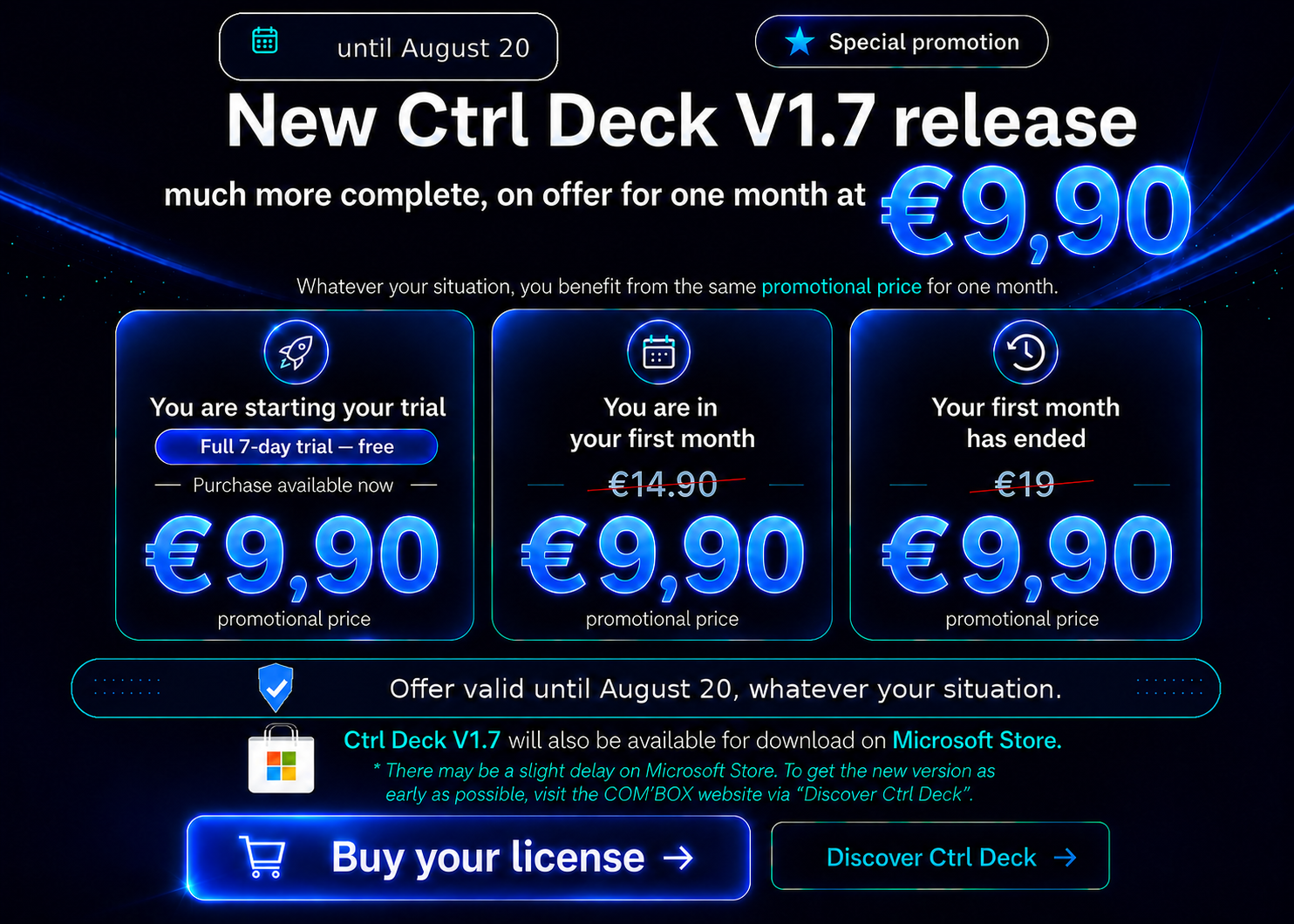

LAUNCH OFFER€14.90
STANDARD PRICE€19
ONE-TIME PAYMENTNo subscription
UPDATESFixes and improvements for the current version included
No credit card required. No hidden fees. In any case, you keep two free editable shortcuts.

Download Ctrl Deck for Windows

Multilingual Windows installer. Choose your language during installation. Ctrl Deck is available on Microsoft Store.

Download Ctrl Deck V1.6

Compatible with Windows 10 / 11 — 64-bit (x64). Desktop version for Windows PCs.

WindowsMultilingual installerCtrl Deck is available on Microsoft Store.

Secure payment by Stripe

Card payment, PayPal, Apple Pay, Google Pay and Link depending on availability.

Other compatible methods may be offered automatically at checkout depending on your country.

Invoice issued by COM’BOX. Support available from the publisher.

Secure payments powered by Stripe.

Your payment information is encrypted and never stored.

Frequently asked questions

Install Ctrl Deck: Microsoft Store & direct download

Need visual examples? The V1.6 Quick Start on the Ctrl Deck page includes short videos for each main feature — one feature, one short explanation.

Go to the V1.6 Quick Start

Can I install Ctrl Deck without Microsoft Store?

Yes, if the direct installer is available on the COM'BOX site. Download it only from the official Ctrl Deck download page on COM'BOX.

What is the difference between Microsoft Store and the direct installer?

Microsoft Store is Microsoft's distribution channel for Windows apps. The direct installer is downloaded from COM'BOX and installed on your PC. Both can install Ctrl Deck — the choice is how you prefer to get the app.

Which version is available?

The download buttons on COM'BOX show the current direct downloadable version. Ctrl Deck V1.6 is the current public direct version offered on this site.

Why can the Store version and direct version differ temporarily?

Microsoft Store validation can take time. COM'BOX can offer a newer direct version while the Store listing catches up.

Does the direct installer change payment or licence rules?

No. Payment and licence rules remain exactly the same whether you install Ctrl Deck from the Microsoft Store or with the COM'BOX direct installer. Only the installation channel changes.

Where do I download the current version?

From the Ctrl Deck download section on COM'BOX. Use the official download page for your language — the link on this page points to it.

How do I know if I have the latest version?

The Help button in the top-right corner of Ctrl Deck V1.6 immediately tells you whether your version is up to date. If it indicates that a newer version is available, you can download it from COM'BOX. The direct version may be available before it reaches the Microsoft Store.

Does Ctrl Deck install updates automatically?

No. Ctrl Deck can inform you when a new version is available and guide you to the COM'BOX site. It does not silently install updates.

Is V1.6 more suitable for new users?

Yes. V1.6 offers a clearer visual panel, simple clicks, optional keyboard shortcuts, drag and drop, app detection, Workspaces and Live Spaces — with Quick Start explanations on the product page.

Is V1.6 easier to configure?

Yes. V1.6 is designed for a broader range of Windows users: drag and drop for Shortcuts and Workspaces (where supported), Detect application when you do not know an app's install path, and a clearer visual panel — all walked through in Quick Start.

Can I start using Ctrl Deck without understanding Windows folders and executable paths?

In large part, yes. You can add many common files, folders, links and apps by drag and drop onto the panel. For applications, Detect application helps when you are unsure where the executable is — without asking you to browse Windows like an IT admin first.

Where can I see examples?

On the Ctrl Deck product page, open the Quick Start section (#quick-start) — use the button at the top of this FAQ, or go to the product page and scroll to Quick Start V1.6. Each V1.6 feature, including drag and drop and Detect application, is explained there.

I installed Ctrl Deck and I am lost. Where do I start?

Open the Quick Start section on the Ctrl Deck product page. Each function is explained in plain language there — use the button at the top of this FAQ to jump there.

Where can I find the Ctrl Deck Quick Start videos?

The Quick Start videos are available in the dedicated section on the Ctrl Deck page. They cover the main Ctrl Deck V1.6 features, including drag and drop, Detect application, keyboard shortcuts, Workspaces, Live Spaces, and other useful capabilities.

Is the Microsoft Store required to use Ctrl Deck?

No, if the direct installer is available on COM'BOX. You can install Ctrl Deck from COM'BOX without relying only on the Store.